Guide · Practical skills · Updated August 2026
Taming Your Photo Library: A System That Survives Years
Clever apps come and go. Date folders, a monthly cull and one backup rule are what still work when your library hits five figures.
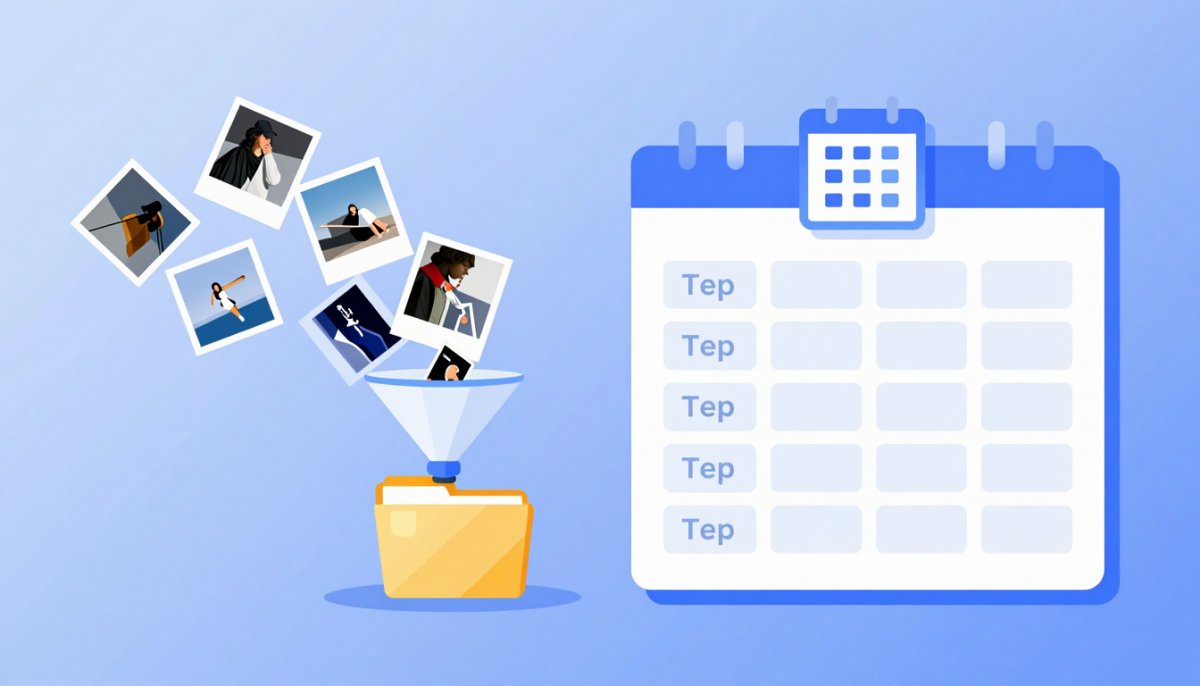
Open your phone's gallery and scroll to the bottom. If the trip takes more than a few seconds, you already know the problem: photo libraries do not stay organized on their own, and every year of neglect makes the cleanup job bigger. The fix is not a smarter app — it is a boring system simple enough that you will still be following it in five years. This guide lays out that system.
Why photo libraries rot
Two forces work against you. The first is volume: phones make photography free, so a camera roll quietly grows into 20,000 unsorted images — at a typical 3 MB per photo, that is around 60 GB of "I'll sort it someday". The second is duplication: every messaging app saves its own copy of every image you receive. WhatsApp writes incoming photos to its own folder, Telegram to another, your browser drops memes into Downloads, and the same birthday picture forwarded through three group chats now exists four times at three different compression levels.
No one sits down and sorts 20,000 photos in an afternoon. The realistic goal is different: stop the rot going forward, then chip away at the backlog.
The backbone: date-based folders
Every durable photo system I have seen rests on the same skeleton: one folder per year, one subfolder per month, named so they sort themselves.
Photos/
  2025/
    2025-11/
    2025-12/
  2026/
    2026-07/
    2026-08/
The YYYY/YYYY-MM pattern wins because it removes decisions. You never wonder where a photo goes — its date decides. Folders sort chronologically in every file manager on every operating system, with no app, database or subscription involved. Event-based folders ("Summer trip", "Sara's wedding") feel friendlier but collapse at scale: half your photos fit no event, and in three years you will not remember whether the wedding was filed under "Weddings", "Family" or "2024".
Name only the keepers
Renaming thousands of files is a waste of your life. Instead, rename only the small set of photos you actively want to find again or publish: 2026-08-beach-sunset.jpg instead of IMG_4471.jpg. The date prefix keeps chronological sorting intact; the words make the file searchable by name. And if the image is ever going on a website, a descriptive filename is one of the easiest ranking signals you control — our image SEO guide covers exactly how Google reads filenames.
The one-pass cull ritual
Sorting is pointless if 40% of what you sort is junk. Once a month — pick a fixed day, like the first Sunday — do a single pass over last month's photos:
- Delete on sight: blurry shots, accidental pocket photos, screenshots you no longer need, and the nine near-identical frames around the one good one.
- Star the keepers: flag the handful of photos per month you would actually print, share or want in a year-end album. Every gallery app has a favourite or star function.
- Do not agonize. One pass, quick decisions, done. If you cannot decide in three seconds, keep it and move on.
The arithmetic is what makes this sustainable: if you shoot 300 photos a month and spend ten seconds on each, the whole ritual takes 50 minutes. Skip it for two years and the same job is a 20-hour project you will never start — which is precisely how libraries rot in the first place.
Where should the photos live?
Honest answer: cloud auto-backup and local copies each solve a different half of the problem, and neither is sufficient alone.
Cloud auto-backup (iCloud Photos, Google Photos) is the best insurance against the most common disaster — a lost, stolen or broken phone — because it works without you remembering anything. The trade-offs: free tiers are small (5 GB on iCloud, 15 GB on Google shared with Gmail and Drive), so a real library means a monthly fee forever; "storage saver" modes may recompress your originals; and your entire archive depends on one account you could be locked out of.
Local copies (a computer plus an external drive) cost a one-time purchase, keep full-resolution originals under your control, and work offline. The trade-off is that they only exist if you actually copy the files — a backup that depends on discipline is the first thing to lapse — and a drive in the same house as the computer burns or floods with it.
This is why the standard advice is the 3-2-1 rule, and it fits in one paragraph: keep 3 copies of anything you care about (the original plus two backups), on 2 different types of storage (for example your computer and an external drive, so one failure mode cannot take both), with 1 copy offsite (cloud storage, or a drive at a relative's house) so a single fire, flood or burglary cannot reach everything. Phone + cloud sync + a yearly copy to an external drive satisfies it with almost no ongoing effort.
The duplicate problem: WhatsApp and Downloads
Messaging apps are the biggest source of library clutter. Treat their folders as inboxes, not archives: during your monthly cull, skim the WhatsApp media and Downloads folders, move the few images worth keeping into the proper YYYY-MM folder, and clear the rest. Two habits prevent most duplication: turn off "save to gallery" in messaging apps so received images stop auto-flooding your camera roll, and remember that a photo forwarded through WhatsApp has been recompressed — if you took the original, keep your copy and delete the degraded round-trip version.
Formats: archive originals, share copies
Whatever format your camera produces — HEIC on most phones, RAW on dedicated cameras, full-resolution JPG elsewhere — that file is your master. Archive it untouched. Convert HEIC only when a recipient or website cannot read it, and always from a copy (our HEIC to JPG guide explains when conversion is genuinely needed).
The corollary: never resize your only copy. Downscaling throws away pixels permanently, and "I shrank it to email it" is how people end up with an 800-pixel version of a photo they later want printed. When you need a smaller version for the web, email or social media, make a separate share copy with our Image Resizer — it runs entirely in your browser and exports JPEG, PNG or WebP, leaving the original file exactly as it was. The settings that keep downscaled photos crisp are in our resizing guide.
Your starter checklist
| Task | How often | Time |
|---|---|---|
Create YYYY/YYYY-MM folder structure for this year | Once | 5 min |
| Turn on cloud auto-backup; turn off "save to gallery" in messaging apps | Once | 10 min |
| Cull last month: delete blur and duplicates, star keepers | Monthly | 30–60 min |
| Empty WhatsApp media and Downloads into date folders | Monthly | 10 min |
Rename keeper files descriptively (2026-08-beach-sunset.jpg) | Monthly | 5 min |
| Copy the year's folders to an external drive | Yearly | 30 min |
| Backlog session: sort one old month into the system | When motivated | Open-ended |
The bottom line
A photo library that survives years is not built on enthusiasm — it is built on defaults. Date folders decide where files go, a monthly hour keeps junk out, the 3-2-1 rule makes loss survivable, and originals stay untouched while share copies do the travelling. Set it up once, and the system does the remembering for you.
Need a share copy?
Resize photos right in your browser — your original never leaves your device, and never gets overwritten.
Open the Image Resizer