Guide · Image formats · Updated August 2026
HEIC Photos: Why iPhones Use Them and How to Share Them Anywhere
Your iPhone shoots a format half the internet cannot open. Here is why Apple made that choice — and every practical route from HEIC to a JPG that works everywhere.
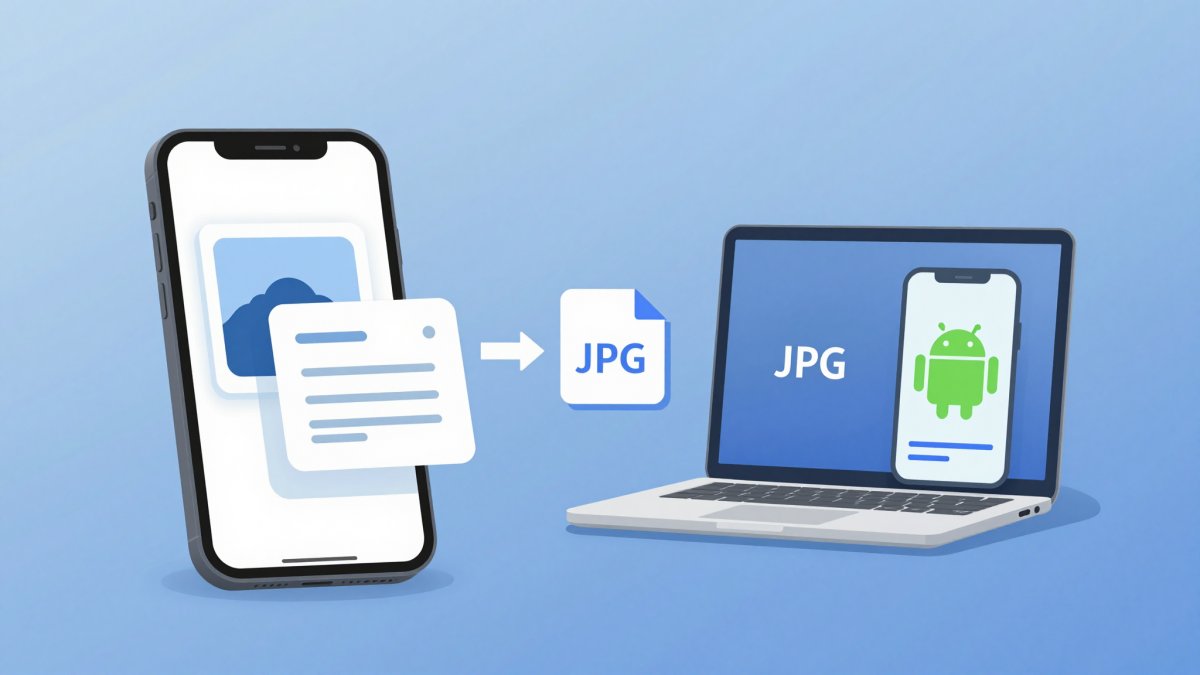
The scene is familiar: you copy photos from an iPhone to a Windows PC, or someone AirDrops you their holiday pictures, and the files simply refuse to open. The extension is .heic, and unless the receiving device speaks Apple's dialect, the photo might as well be encrypted. This guide explains what HEIC actually is, why Apple adopted it, and — most usefully — every built-in and external route for turning it into a JPG the rest of the world accepts.
What HEIC actually is
HEIF (High Efficiency Image File Format) is a modern image container standardised by MPEG. HEIC is the specific flavour Apple uses: HEIF images compressed with the HEVC codec (H.265), the same compression engine behind modern 4K video. Apple made it the default photo format in iOS 11, back in 2017, and every iPhone since has shot HEIC out of the box.
The engineering case is genuinely strong. At similar visual quality, a HEIC photo is roughly half the size of the equivalent JPG. It also supports 10-bit colour (JPG is limited to 8-bit), transparency, and clever container tricks — a single HEIC file can hold a burst sequence, the two frames of a Live Photo, or the depth map used for Portrait mode.
Why it exists — and why it annoys everyone
The motive was storage. Take a typical 12 MP iPhone photo: around 3 MB as a JPG, around 1.5 MB as HEIC. A camera roll of 5,000 photos is the difference between 15 GB and 7.5 GB — half the space on your phone and half the iCloud bill. Multiply by a billion iPhones and the decision makes obvious sense from Cupertino.
From everywhere else, less so. HEIC's problem is not quality — it is compatibility:
- Browsers cannot display it. Chrome, Firefox and Edge will not render HEIC on a web page; only Safari has partial support. That alone disqualifies it for anything web-facing.
- Windows needs codecs. Windows 10 and 11 open HEIC only after installing the HEIF Image Extensions from the Microsoft Store — and the companion HEVC codec has historically cost about a dollar.
- Many platforms reject it outright. Upload forms, CMS media libraries, print services and older Android devices frequently refuse
.heicfiles or mangle them.
In short: HEIC is an excellent format for storing photos inside the Apple ecosystem, and a constant source of friction the moment a file leaves it.
Check what your iPhone is shooting
Open Settings > Camera > Formats. You will find two options:
- High Efficiency — photos as HEIC, video as HEVC. The default, and the space-saver.
- Most Compatible — photos as JPG, video as H.264. Larger files, zero compatibility headaches.
One caveat before you flip the switch: the highest video modes (4K at 60 fps, 1080p slow-motion at 240 fps) require High Efficiency, so Most Compatible takes them off the menu. And the setting only affects future photos — everything already in your library stays HEIC.
The escape hatches Apple built in
Apple knew the compatibility problem was coming, so iOS quietly converts in several situations:
- Sharing by Mail converts the photo to JPG automatically. So do most third-party apps — WhatsApp, Instagram and the like re-encode whatever you hand them.
- USB transfer: under Settings > Photos > Transfer to Mac or PC, choose Automatic and the iPhone converts to a compatible format while copying over cable.
- AirDrop does not convert. Apple assumes an Apple device on the other end, so the HEIC arrives as-is — which is exactly how HEIC files end up stranded on a Mac you then copy to a PC.
Every conversion route, compared
| Route | Where | What to know |
|---|---|---|
| Switch to Most Compatible | iPhone · Settings > Camera > Formats | All future photos shoot as JPG. Does not touch existing HEIC photos; disables 4K60 video. |
| Automatic transfer setting | iPhone · Settings > Photos | Converts on the fly when copying to a computer by cable. Originals stay HEIC on the phone. |
| Share-sheet tricks | iPhone · share menu | Mail and most apps convert to JPG automatically. AirDrop keeps HEIC — do not rely on it. |
| Windows Photos | Windows 10/11 | Install the HEIF/HEVC extensions from the Microsoft Store first, then open and save as JPG. |
| macOS Preview | Any Mac | Open the file, then File > Export and choose JPEG. Handles batches via Preview's multi-select. |
| Online converters | Any browser | Fine for a handful of photos. Check the privacy policy and deletion window before uploading. |
A note in the interest of honesty: our own free converter currently handles PNG to JPG, not HEIC — files are processed server-side and auto-deleted within six hours. For HEIC, the phone-side routes above are the fastest fix, and they cost nothing.
Keep HEIC or convert to JPG?
The right answer depends on where the photo lives:
- Keep HEIC for your personal library on Apple devices. It is smaller, retains more colour depth, and preserves Live Photo and depth data that JPG throws away. iCloud, the Photos app and every modern Apple device handle it natively.
- Convert to JPG the moment a photo needs to travel: emailing (see our guide on attachment size limits), uploading to a website, sending to a print service, or handing files to anyone whose devices you cannot vouch for. JPG is the one format that never bounces.
This is the same specialist-versus-universal trade-off that runs through all image formats — our complete format guide maps the whole landscape, and PNG vs JPG covers the equivalent decision for graphics.
One quality warning
Both HEIC and JPG are lossy formats, so HEIC → JPG is a lossy-to-lossy conversion: the JPG re-encodes an image that was already compressed once, and a little quality is shaved off in the process. Done once, at a decent quality setting, the difference is invisible. The mistake to avoid is chaining conversions — HEIC to JPG, edit, save, convert again. Convert once, from the original, and keep that HEIC original if the photo matters to you.
The bottom line
HEIC is not a gimmick — it genuinely halves the size of your photo library at no visible cost. But it is a storage format, not a sharing format. Let your iPhone keep shooting High Efficiency if storage is tight, learn the two settings that convert automatically on the way out, and export to JPG whenever a photo leaves the Apple bubble. That way you get the storage savings and photos that open everywhere.
Need a PNG as a JPG instead?
Free PNG to JPG conversion with adjustable quality — files auto-deleted within 6 hours.
Convert PNG to JPG