Guide · Fundamentals · Updated August 2026
Why Is This Image 8 MB? Image File Size, Explained
File size is not random. Three levers decide it — pixel count, compression and content — and once you know them, you can shrink any image on purpose.
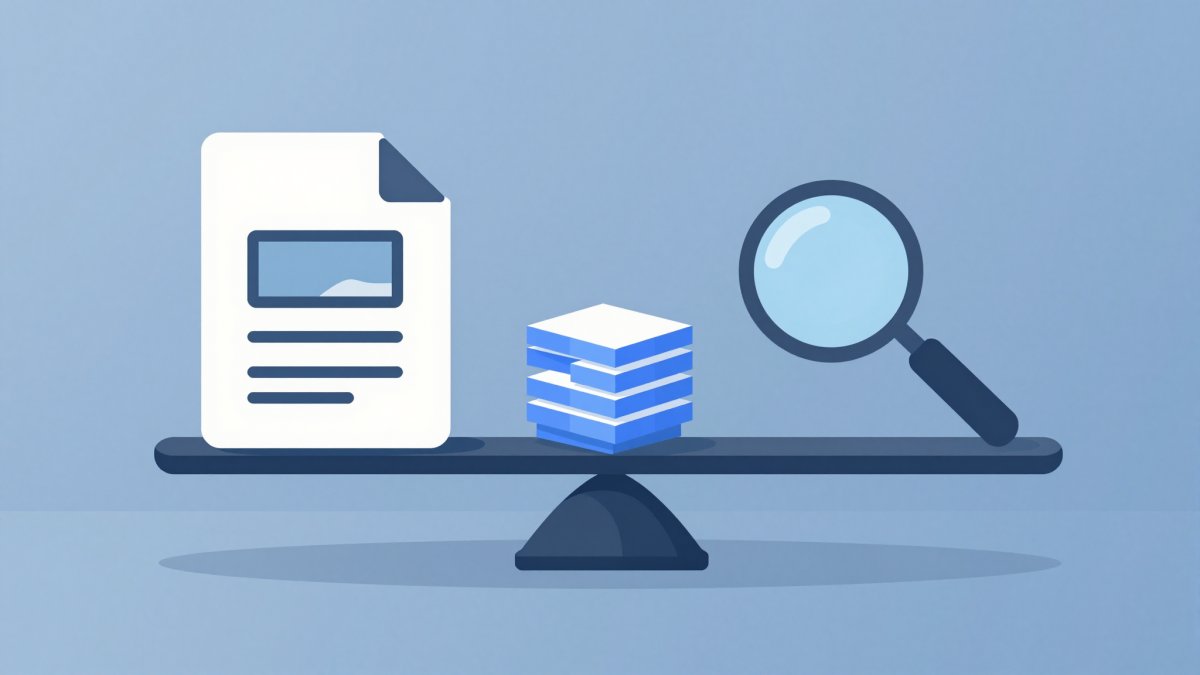
You try to attach a photo and the form rejects it: 8 MB, limit 5. Meanwhile the logo next to it weighs 12 KB — roughly 700 times less. Why? Image file size looks arbitrary until you see the machinery underneath. There are exactly three levers, and they multiply together. This guide walks through each one with real numbers, then gives you a table of healthy sizes and the correct order for shrinking.
Lever 1: pixel count — the dominant one
An uncompressed image stores three bytes per pixel — one each for red, green and blue. A modern phone shoots 12 megapixels: 12 million pixels × 3 bytes = 36 million bytes, about 36 MB of raw data before any compression touches it. That is the starting mass everything else works on.
The crucial property: pixel count grows with the square of the dimensions. Halve both sides of a 4000×3000 photo and you get 2000×1500 — not half the pixels but a quarter (3 MP instead of 12 MP). This is why resizing is the most powerful move you have: a modest-looking reduction in width removes most of the data. No quality slider can compete with simply having fewer pixels to store.
Lever 2: compression — how hard the file fights back
Nobody ships 36 MB photos, because compression steps in. It comes in two families:
- Lossless (PNG) packs the data more cleverly but keeps every pixel exactly. It can only shrink as far as the data allows — often barely 2:1 on photographs.
- Lossy (JPG, WebP, HEIC) discards detail your eye is bad at noticing. The quality setting decides how aggressively: a photo saved at quality 90 typically lands around 6:1 to 12:1 versus raw; quality 80 pushes further for a small visible cost.
The quality scale is not linear. Between q85 and q100 the file can triple in size while looking identical at normal viewing distance — those last "percent" buy almost nothing. That sweet spot, and what actually degrades when you push below it, is covered in our guide to compressing images without losing quality.
Lever 3: content — why two identical-size photos differ 5×
Here is the lever most people never suspect: what is in the picture. Compression works by finding predictability. A clear sky is thousands of nearly identical blue pixels — trivially predictable, so it compresses to almost nothing. A forest full of leaves, a gravel path, a low-light shot full of sensor noise — every pixel differs from its neighbour, so there is little to squeeze.
Take two 12 MP photos from the same phone at the same quality setting: a minimalist shot of a wall against open sky might save at 1.5 MB, while a dense autumn forest saves at 7–8 MB. Same pixels, same format, same settings — a 5× difference purely from content. Noise is the worst offender: grain from a dark restaurant shot is random detail the encoder must faithfully attempt to keep, which is why night photos are often your heaviest files despite being your least detailed-looking ones.
The small print: metadata
Beyond pixels, image files carry baggage: EXIF data (camera model, exposure, date, sometimes GPS coordinates), an embedded preview thumbnail so galleries can render fast, and a colour profile (an sRGB profile is a few KB; some profiles run much larger). On a photo this typically totals well under 100 KB — real, but a rounding error. On tiny images the ratio flips: a 20 KB thumbnail dragging a 40 KB embedded preview is two-thirds baggage. Most exporters and optimizers strip metadata on save, which is also worth doing for privacy before photos go public.
A worked example, with honest math
Follow one photo from sensor to web page:
- Capture: 4000 × 3000 = 12,000,000 pixels × 3 bytes = 36,000,000 bytes ≈ 36 MB raw.
- Camera saves as JPG (quality ≈ 90): lossy compression brings it to 3–6 MB depending on scene detail — this is the 8 MB mystery file when the scene is busy or noisy.
- Resize to 1600 px wide for the web: 1600 × 1200 = 1,920,000 pixels — only 16% of the original count, about 5.8 MB raw.
- Re-save at quality 85: typically 300 KB to 1 MB, again depending on content.
End to end: roughly 36 MB of raw data delivered in half a megabyte, with no visible loss at web size. Notice which step did the heavy lifting — the resize removed 84% of the pixels before compression even had its turn.
Why screenshots break the pattern
A 1920×1080 screenshot of a document is 6.2 MB raw (1920 × 1080 × 3 bytes), yet saves as a 150–400 KB PNG — because flat white background and repeated interface colours are maximally predictable, exactly what lossless compression devours. Save that same screenshot as JPG and you get the worst of both worlds: a file that is no smaller (often larger) and fuzzy grey halos around every letter, because sharp text edges are precisely the high-frequency detail JPG discards. The rule from our PNG vs JPG guide holds: photos travel as JPG, screenshots and graphics as PNG.
What a healthy file size looks like
Rules of thumb for common cases — if your file sits far above the right-hand column, one of the three levers is set wrong:
| Image type | Typical healthy size | Investigate if over |
|---|---|---|
| Phone photo, full resolution (12 MP JPG) | 2–4 MB | 8 MB |
| Web hero image, 1600 px wide (JPG/WebP) | 150–400 KB | 1 MB |
| Thumbnail, ~300 px | 15–40 KB | 100 KB |
| Logo, flat-colour PNG | 5–50 KB | 200 KB |
| Icon / favicon | 1–10 KB | 50 KB |
One caveat: these targets are for screens. Print is a different economy — a photo destined for paper genuinely needs its pixels, as explained in DPI, PPI and resolution: print vs screen.
The practical shrinking order
When a file is too big, work the levers in order of power:
- Resize first. Pixel count is quadratic, so this is where the megabytes are. Match the dimensions to the actual use — 1600–2000 px wide covers almost every web purpose. Our free Image Resizer does this in your browser (files never leave your device), and the resizing without losing sharpness guide covers the settings that keep results crisp.
- Then compress. With the pixels right, set quality to 80–85 for general use. Going lower saves little more; going higher wastes bytes invisibly.
- Then pick the format. Photos as JPG (or WebP where you control the platform), graphics and text as PNG. Format is the finishing touch, not the fix — the wrong dimensions in the "right" format is still a bloated file.
The bottom line
An 8 MB image is not a mystery — it is 12 million pixels of busy content saved at a generous quality setting, and every one of those factors is under your control. Remember the multiplication: pixels × compression × content, plus a little metadata. Resize to the size you need, compress to the sweet spot, choose the format that matches the content, and the numbers fall in line every time.
Pull the biggest lever first
Resize any image right in your browser — free, private, with JPEG, PNG and WebP export.
Open the Image Resizer